Notes and tasks
Jetto lets you write notes on any customer, person, company or deal, and add tasks with due dates that come together on your Agenda. Gate codes, what the customer asked for and who to call back stay with the record, on your own device.
Start now, no signupOpen Jetto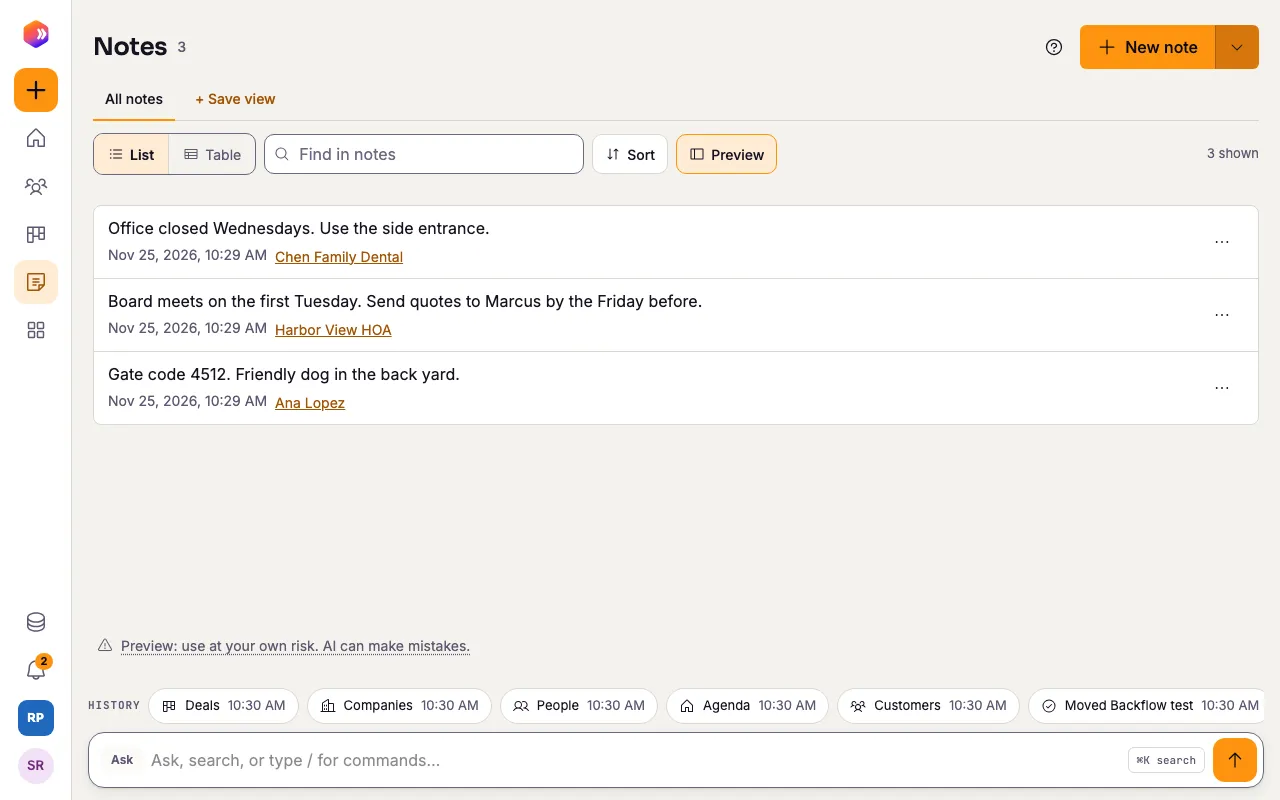
What goes in a note?
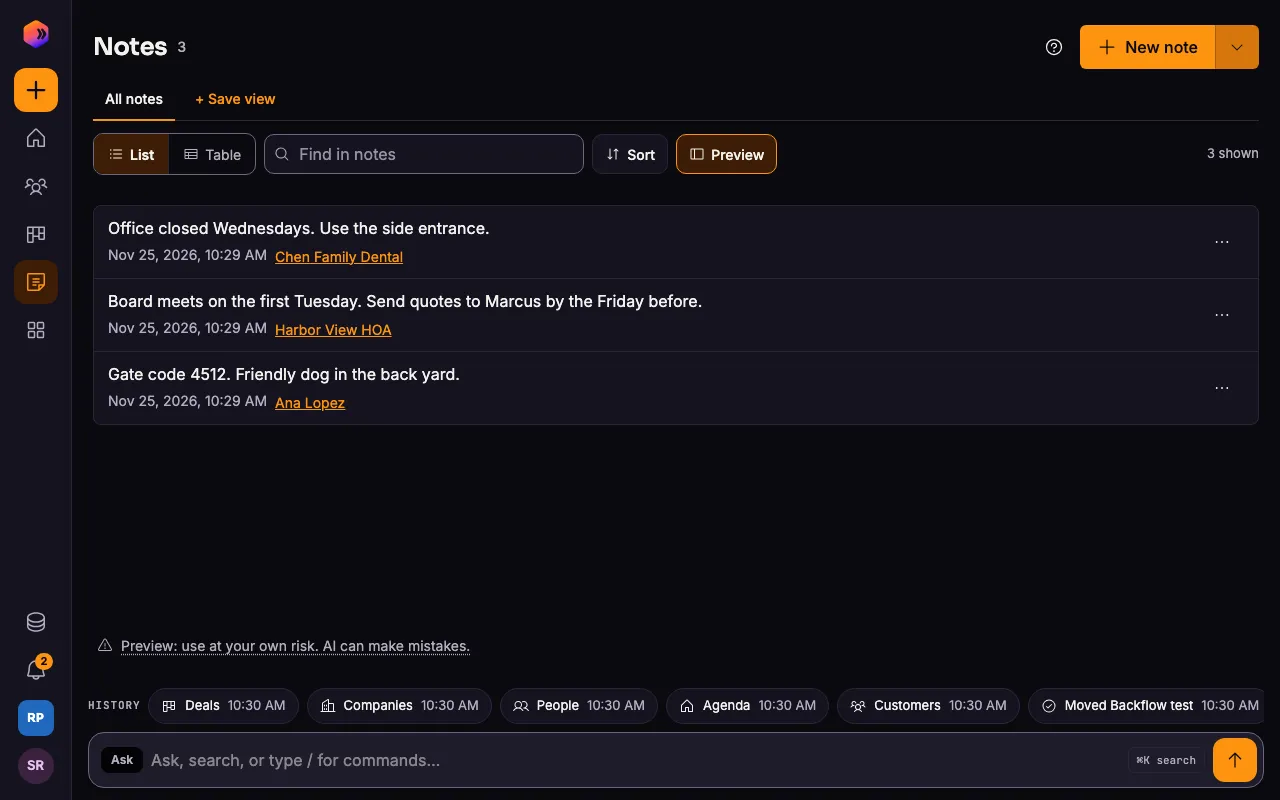
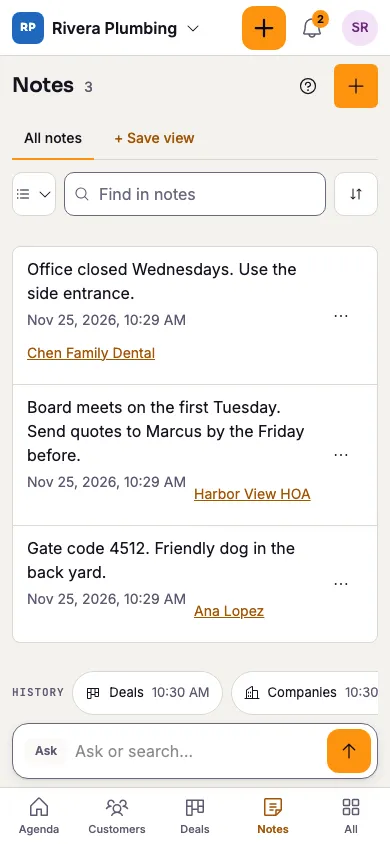
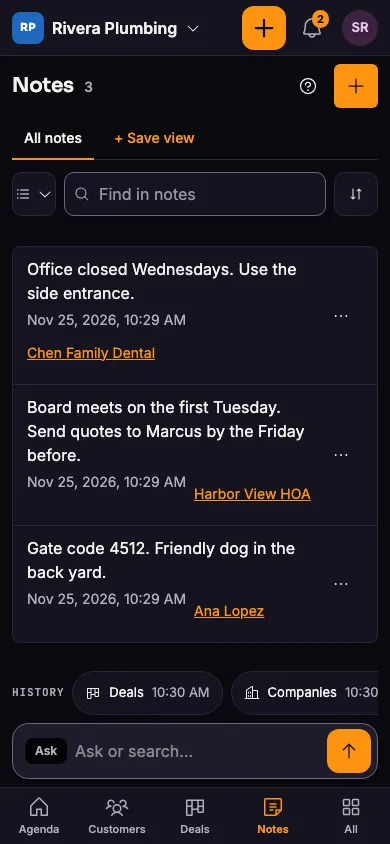
Anything you'd otherwise keep on a sticky note or in your head: the gate code, the dog's name, what the customer asked for on the phone, the model of the old water heater. Each note belongs to a record, a customer, person, company or deal, and shows there and in the Notes list, newest first.
How does the Agenda keep you on top of follow-ups?
Give a task a due date and it lands on the Agenda, the first screen you see when you open Jetto. Overdue and due-today tasks come first, then the week ahead, then tasks with no date. Tick a task when it's done; it stays under Done today until tomorrow in case you ticked it by mistake.
What can you do today?
- Write notes on customers, people, companies and deals, and pin the important ones.
- Add tasks to a record with an optional due date, or add a quick task straight on the Agenda.
- See what's overdue and due today in your notifications.
- Find any note again with search.
- See the next open task on each deal card on the deals board.
Notes and tasks sit on your customers and their contacts; the CRM overview shows how it all fits.
Jetto for your kind of business
How to use it
Notes and tasks belong to a record: a customer, a person, one of your organizations or a deal. They show on that record and in the lists.
Write a note
On a record, type in Write a note and press Add note. Or press New note on the Notes screen (or in + Create), write it and choose the record it's on. The Notes screen lists every note, newest first, and you can search them.
Edit, pin or delete a note
Each note has a menu (the … button) on the Notes screen and on records:
- Edit opens the note in place; Save keeps the change and Esc or Cancel leaves it as it was.
- Pin to the top keeps an important note above the others; Unpin puts it back in order.
- Delete asks first, then removes the note.
Add a task
On a record, press Add task, say what needs doing and, if you like, when. Or press New task on the Agenda (or in + Create) and choose the record there. Tasks with a date show on the Agenda and, when they're due, in your notifications. A task with a time is a reminder: see Reminders.
Find a note again
Press ⌘ K (or Ctrl K) and type a word from the note: search looks inside notes too.
Frequently asked questions
Where do my tasks show up?
On the record you added them to, and on the Agenda if they have a date. The Agenda lists tasks due today or earlier first, then the next seven days, then tasks with no date. Tasks that are due or overdue also show in your notifications.
Will Jetto remind me on my phone?
Not yet. Notifications show inside Jetto, from the tasks on this device. Reminders sent to your phone come with syncing between devices, which is planned.
Can I search my notes?
Yes. Type a word from the note in the box at the bottom of the screen (or press Command K or Ctrl K first). Search looks inside notes as well as names, phone numbers, emails and addresses.
Can I keep an important note at the top?
Yes. Pin a note and it stays above the others on that record, like a gate code or "call before you come".
Try it on your own device
Jetto opens in your browser and can be installed like an app. There's no account to create: your data stays on this device. It's an early version, so use it at your own risk and keep backups.
Start now, no signupOpen JettoRelated features
- Customers and contacts Early version Customers, people and organizations, with phones, emails and addresses kept tidy and free of duplicates.
- Deals and pipelines Early version See where every lead and job stands, as a board, a list, a table or a funnel.
- Works offline Early version On your computer and phone, installed like an app. Your data stays on your device.
Last updated: