Customers and contacts
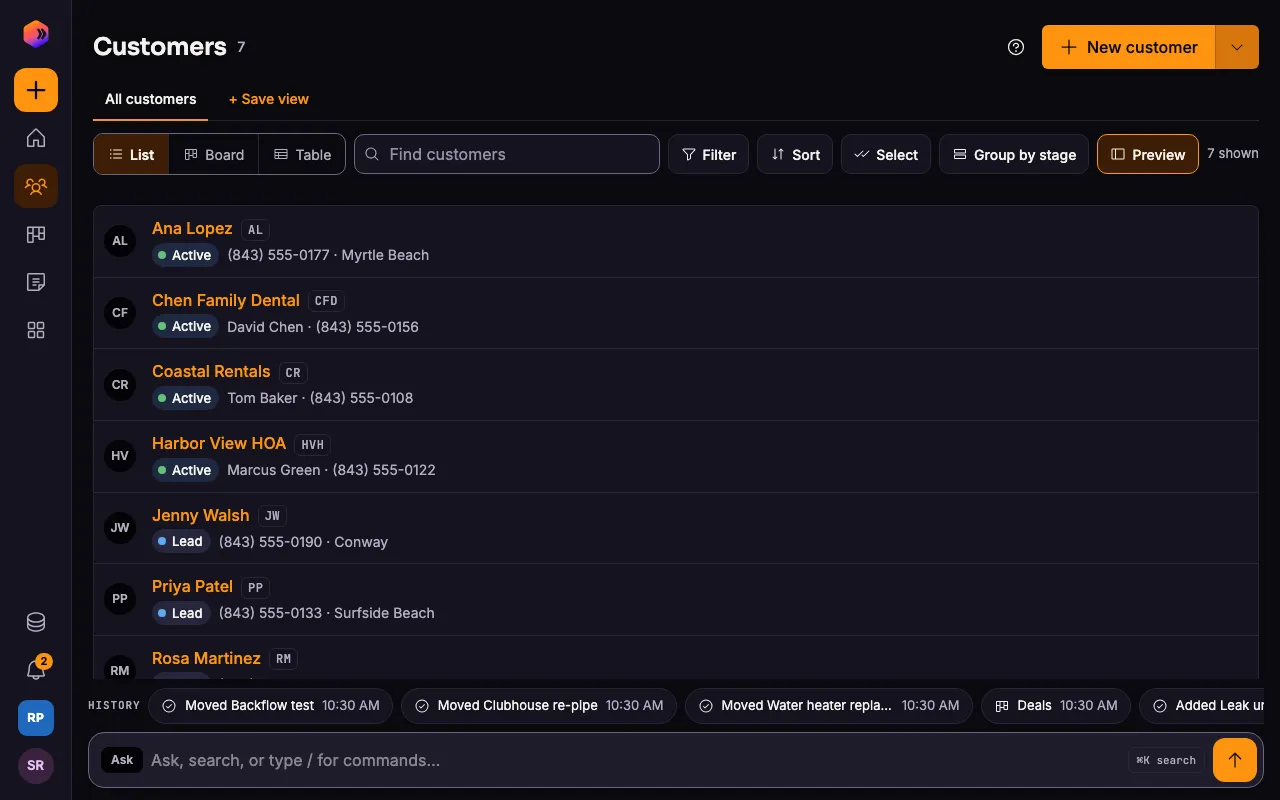
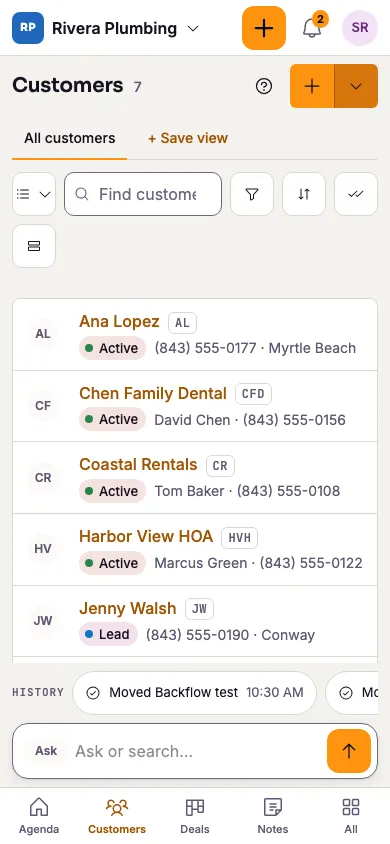
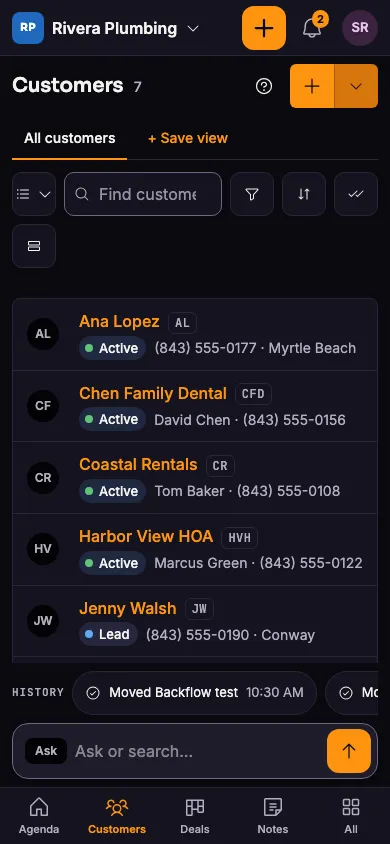
Jetto keeps everyone you work for, and the people you deal with there, in one tidy list on your own phone or computer. It's made for small businesses and the trades, and it works with no internet and no account.
Start now, no signupOpen Jetto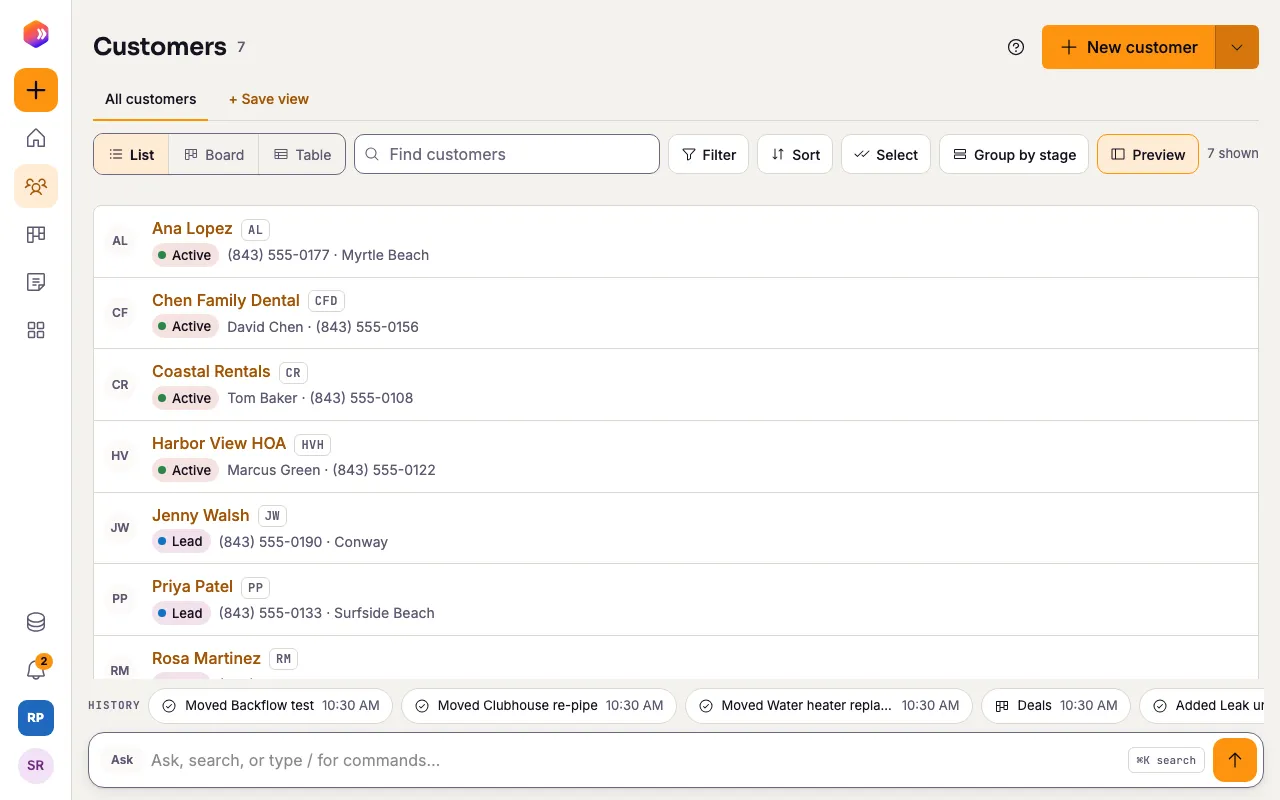
What is a customer in Jetto?
A customer is who you do the work for and send the bill to: a family, a person, or a company you serve. Each customer has at least one person or company as a contact, so you always know who to call. A residential customer is a person; a commercial customer is a company, with any number of contact people.
How does Jetto keep duplicates out?
A phone number or email is stored once. When you type one that's already in Jetto, it's shared with the new record instead of copied, so a change shows everywhere. When a name looks like someone you already have, Jetto suggests them, and you can merge two people or companies into one.
Does it work without the internet?
Yes. Jetto keeps your customers on your device, so you can find a customer's address, phone number or gate code on a job site with no signal. It opens in your browser and can be installed on your phone or computer like an app.
What can you do today?
- Add residential and commercial customers, from a form or by typing "new customer Ana Lopez 843 555 0177" in the command box.
- Keep phones, emails and addresses on each customer, with one marked as primary, and addresses that say whether they're for service, billing or mail.
- Link people to companies, with their job title at each company and their role for each customer (billing, site or decision maker).
- Give each customer a stage, such as Lead or Active, and add notes and tasks.
- Find anyone fast by name, phone, email, address or note.
- Import from HubSpot, Wave or a spreadsheet, and export your lists as CSV files.
Jetto for your kind of business
How to use it
A customer is who you work for and bill: a family, a person, or one of the organizations you serve. Every customer has at least one person or organization as a contact.
Add a customer
- Press New customer on the Customers screen or in + Create, or type "new customer" in the box with a name and phone number ("new customer Ana Lopez 843 555 0177"): the dialog opens filled in.
- Choose Residential (a person) or Commercial (one of the organizations you serve, with an optional contact person).
- In the search box, pick the person or organization if they're already in Jetto, or choose Create new at the end of the list and add a phone and email. A new organization's phone and email are its own, and it can have web domains.
- Add an address if you have one, and press Create customer. The new customer's record opens.
Residential or commercial
Residential customers are people and families: the customer needs a person. Commercial customers are organizations: the customer needs one. The customer's name is the person's or organization's name unless you type another one, such as "Lopez rental".
Initials
Each customer can have short initials, such as WER for Water's Edge Resort. Jetto guesses them from the name; change them in New customer or on the customer's record under Details. No two customers can share initials: if yours are taken, Jetto says who has them and offers free ones. Type initials in the Find box or the command box to find a customer.
Duplicates
When you type a name, phone or email, the people or organizations already in Jetto are listed first: pick one to link it instead of making a copy. A new one is marked New before you save. A phone number or email already on another record is shared, not copied, so a change shows everywhere.
Phone numbers, emails and addresses
On a customer, press Add phone, Add email or Add address. Make primary chooses the one shown first. An address can say what it's used for: service, billing or mailing.
Stage
The customer's stage (for example Lead or Active) shows where they are with you. Change it on the customer's record, or choose Board at the top of the Customers screen to see a column per stage and drag customers between them. The board has the same stage tools and colors as deals (see Stage tools), and Edit stages is in the screen's ▾ menu. List and Table show each customer's stage as a colored label.
Rename or delete
Use the Rename (pencil) and Delete (bin) buttons next to the name. Deleting a customer also deletes its tasks; its people and organizations stay, and its addresses, phone numbers and emails stay on the Addresses, Phones and Emails screens, linked to no one. It can't be undone, so make a backup first if you're unsure.
Frequently asked questions
Do I need an account to use Jetto?
No. You open Jetto in your browser, give your business a name and start adding customers. There's no sign-up and no password, and your customer list isn't sent to us. It stays in the browser on your device.
Where is my customer list stored?
In your browser's storage on the device you use, not on our servers. That's why it works offline. It also means you should download a backup from Settings › Data now and then. The data isn't encrypted on the device yet; the lock screen keeps casual eyes out.
Can I bring my contacts from HubSpot, Wave or a spreadsheet?
Yes. In Settings › Data, import a CSV file exported from HubSpot, Wave or any spreadsheet. Jetto guesses which column is which, shows you what it will do, and matches people it already has by email, phone or name instead of making copies.
Can my team share the customer list?
Not yet. Today Jetto works on one device. Syncing between your devices and with a team, end-to-end encrypted so the server can't read it, is planned for a later version.
Can I call them clients instead of customers?
Yes, if your kind of business uses them. Jetto uses the words of the business type you choose at setup, such as customers and companies for the trades or clients for agencies and photographers. Changing single words yourself is planned.
Try it on your own device
Jetto opens in your browser and can be installed like an app. There's no account to create: your data stays on this device. It's an early version, so use it at your own risk and keep backups.
Start now, no signupOpen JettoRelated features
- Deals and pipelines Early version See where every lead and job stands, as a board, a list, a table or a funnel.
- Notes and tasks Early version Notes on every customer and deal, and tasks with due dates that show up on your Agenda.
- Backup, export and import Early version Download a backup, export CSV files, and bring your contacts in from HubSpot, Wave or a spreadsheet.
Last updated: