Companies and organizations
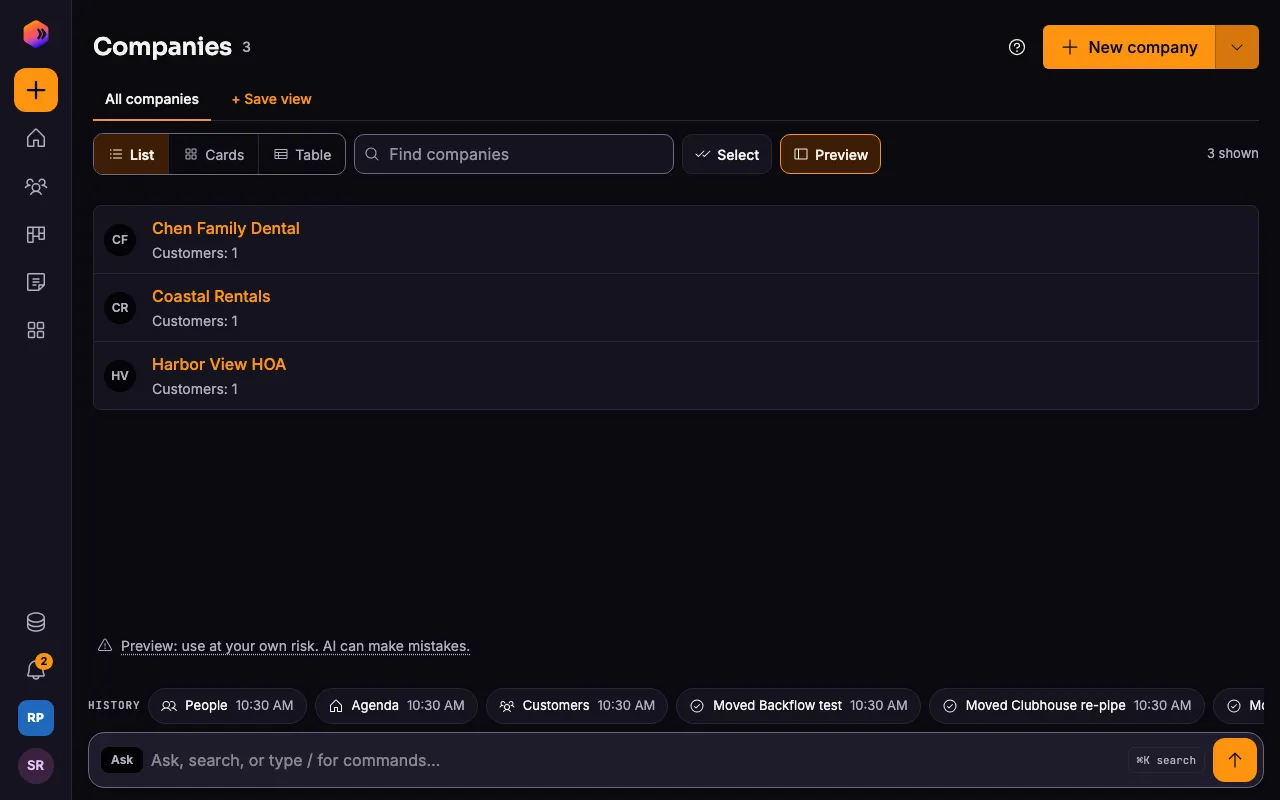
Jetto keeps each company or organization you deal with once, with the people who work there and the customers it's part of, so a property manager's office or an HOA board has one record, not a pile of loose phone numbers.
Start now, no signupOpen Jetto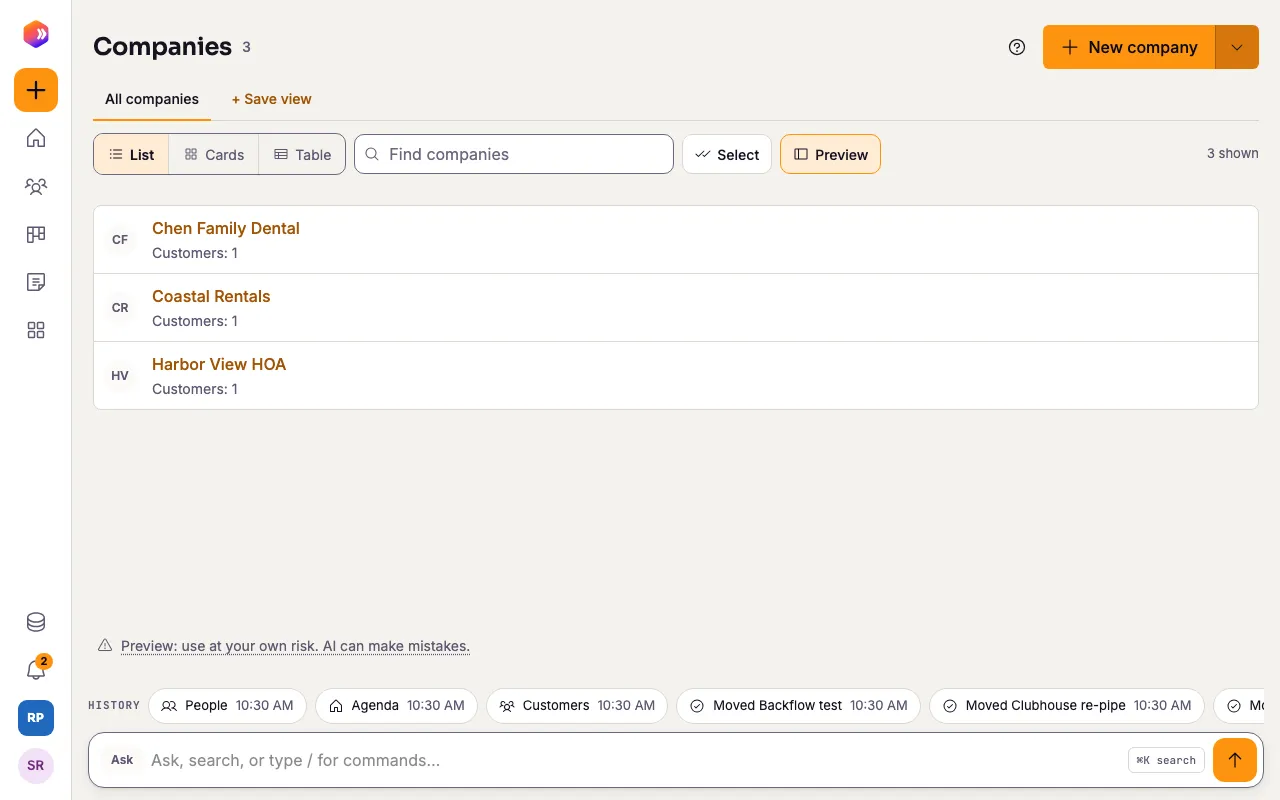
What is an organization in Jetto?
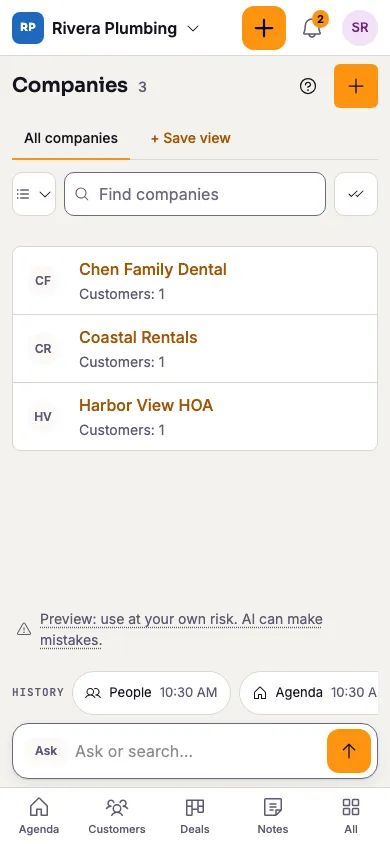
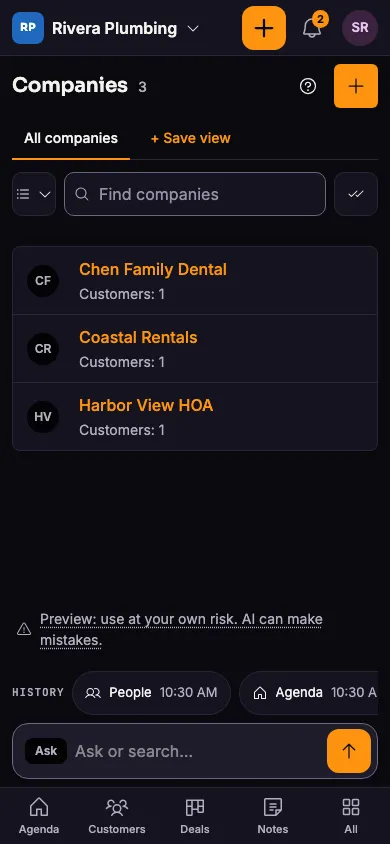
An organization is any group on your customer's side: a company, an HOA, a property management office, a nonprofit or an agency. For the trades Jetto calls them companies. Each one is stored once, with its phones, emails, addresses, notes and tasks, and linked to its people and the customers it's part of.
How do people and companies fit together?
A person can work for several companies, with a job title at each. On a company's record you see everyone who works there and every customer it's part of. When a commercial customer such as a restaurant calls, you see the company and the people to talk to on one screen.
What can you do today?
- Keep a list of every company or organization, and find one by name, phone, email or address.
- Add people to a company with their job title, or link people who are already in Jetto.
- See which customers a company is part of.
- Merge two companies entered twice, keeping everything from both.
Companies work together with customers and people; the CRM overview shows how they fit.
Jetto for your kind of business
How to use it
People and organizations are the contacts behind your customers. One person can be on several customers (their home and a rental, for example) and work for several organizations.
The People and Organizations screens show them as a List or a Table. The Table has each one's main phone, email and address, their organizations (or, for organizations, their people) and their customers; click a name to open it. Find looks through all of these, so you can find someone by their email or phone number too.
Add a person or organization
Press New person on the People screen or New organization on the Organizations screen (both are in + Create too).
- A person needs a name. You can pick one of your organizations they work for, and their job title there.
- For one of your organizations, give a name and, if you like, a type and a website.
Neither has to belong to a customer: add them to one later from the customer's record.
Add a contact to a customer
On the customer's record, press Add person or Add organization. Start typing a name: if it's already in Jetto, choose it to link the same contact instead of making a copy.
Remove a contact
Use Remove from this customer on the contact. The person or organization stays in Jetto. A customer always keeps at least one contact.
Merge duplicates
If the same person or organization was entered twice, open the one to keep and look at Duplicates:
- Jetto lists similar names. Press Merge … into this one next to the copy, or Merge with another… to find one by name.
- Choose which one stays, check what moves and the before and after side by side, and press Merge.
Everything on the copy (its customers, phone numbers, emails, addresses, online profiles, tasks and notes) moves to the one you kept, and the copy is deleted.
Web domains
A web domain is the part of a website or work email after the @ (harborview.org). Jetto keeps one record per domain and adds it by itself whenever you save a work email address or a website. Free email services such as gmail.com never become domains.
- On a customer, person or organization, Web domains lists theirs. Add domain links one; × unlinks it (the domain stays in Jetto).
- Web domains under All screens lists every domain. Open one to see who it's linked to, link a customer, organization or person, and see the email addresses at it.
- A domain can be deleted only when no email address or website uses it, because Jetto would add it again.
Phones, emails and addresses
Each phone number, email address and address is stored once and shared by everyone who uses it. Phones, Emails and Addresses under All screens list them all with who they belong to, as a List or a Table (Phones and Emails also as a Board by status: drag a card to change it). Filter by status, line type, consent, label, city or whether anyone uses it, sort by any column and save the view, like on the other screens.
- Add phone number, Add email address or Add address adds one from its screen. Belongs to is optional: leave it empty to keep it linked to no one for now, and use Link to… on its record later. Phone boxes format the number as you type, the way Jetto shows numbers everywhere.
- Removing a number, email or address from a record only unlinks it: it stays on its screen, so past calls and messages can still show what was used. Filter by Not linked to anyone to find these, and delete one from its record (Delete is offered once nothing links to it).
- Open a phone number to call or text it, set its line type and status (a wrong number, spam), and record whether they agreed to text messages, with when and how. Email addresses work the same way.
- Change number (or Change address for an email) replaces it everywhere it's used, on every record linked to it. Use it when the number itself changed. To give one person a different number, change it on their record instead.
- Open an address to see it on a map or edit it for everyone who uses it. If the same place was entered twice, press Select on the Addresses screen, pick both and press Merge.
People and organizations can also have online profiles, such as a Facebook page or a Yelp listing: see Online profiles.
Every contact, phone, email and address keeps a history of its changes, and deleted ones wait in Recently deleted for a while. See Change history and erasing data.
Frequently asked questions
Is a company the same as a customer?
Not always. A customer is who you do the work for and bill. A company can be that customer, the way a dental office is, or one contact among several, such as the property manager on a homeowner's job. Jetto keeps the two apart, so one company can be on several customers.
Can I call them organizations instead of companies?
It depends on your kind of business. Jetto uses the words of the business type you choose at setup: companies for the trades and agencies, organizations for a business that doesn't fit a type. Changing single words yourself is planned.
Can I import companies from HubSpot?
Yes. In Settings › Data, import a CSV of companies or contacts exported from HubSpot, Wave or a spreadsheet. A company name on a row becomes a company record, and Jetto matches what it already has instead of making copies.
Does this work without the internet?
Yes. Your companies and contacts stay in the browser on your device, so you can look up an office's address or a manager's number with no signal.
Try it on your own device
Jetto opens in your browser and can be installed like an app. There's no account to create: your data stays on this device. It's an early version, so use it at your own risk and keep backups.
Start now, no signupOpen JettoRelated features
- Customers and contacts Early version Customers, people and organizations, with phones, emails and addresses kept tidy and free of duplicates.
- Deals and pipelines Early version See where every lead and job stands, as a board, a list, a table or a funnel.
- Notes and tasks Early version Notes on every customer and deal, and tasks with due dates that show up on your Agenda.
Last updated: